
swiftDialog Workflow
NOTE: The Workflow feature was introduced in swiftDialog 3.1.
swiftDialog Workflow Feature Documentation
Section titled “swiftDialog Workflow Feature Documentation”Overview
Section titled “Overview”The Workflow feature enables multi-step dialog workflows in swiftDialog, allowing you to create wizard-like user interfaces that guide users through multiple screens of input and information. Each card represents a separate screen with its own configuration, and users can navigate forward and backward through the Workflow.
Workflows are defined using JSON configuration files, making it easy to create complex, multi-step dialogs without writing code.
Key Features
Section titled “Key Features”- Multi-step workflows: Break complex dialogs into manageable steps
- Navigation controls: Automatic Next/Previous/Finish buttons
- Conditional branching: Route to different workflow cards based on dropdown selection or checkbox state, with no callback script required
- Data persistence: User input is preserved when navigating between workflow cards
- Global defaults: Define common settings once and override per card
- Variable substitution: Reference values from previous workflow cards using
{fieldname}syntax - Validation: Required field validation before advancing
- Dynamic configuration: Each card can have unique UI elements and settings
- Callbacks: Execute shell scripts when advancing between workflow cards
Basic Concepts
Section titled “Basic Concepts”Workflow Structure
Section titled “Workflow Structure”A workflow-based dialog is defined in a JSON configuration file with the following structure:
{ "workflow": [ { "title": "Step 1", "message": "First screen..." }, { "title": "Step 2", "message": "Second screen..." }, { "title": "Step 3", "message": "Final screen..." } ]}Global Configuration
Section titled “Global Configuration”Properties defined at the root level (outside the workflow array) serve as defaults for all workflow cards. Individual workflow cards can override these defaults:
{ "icon": "/System/Library/CoreServices/CoreTypes.bundle/Contents/Resources/AlertNoteIcon.icns", "button1text": "Continue", "workflow": [ { "title": "Step 1", "message": "Uses default icon" }, { "title": "Step 2", "icon": "SF=checkmark.circle", "message": "Custom icon" } ]}Card Identification
Section titled “Card Identification”Cards are automatically ordered by their position in the array. You can optionally specify an explicit id for custom ordering:
{ "workflow": [ { "id": 0, "title": "First" }, { "id": 10, "title": "Second" }, { "id": 5, "title": "Third (will be displayed second)" } ]}Navigation
Section titled “Navigation”Button Behavior
Section titled “Button Behavior”In workflow mode, the button behavior changes automatically:
-
Button 1 (right side):
- Shows “Next” on workflow cards 1 through n-1
- Shows “Finish” on the last card (or custom text via
button1text) - Validates required fields before advancing
-
Button 2 (left side):
- Hidden on the first card
- Shows “Previous” on workflow cards 2 through n
- No validation when going backward
Customising Button Text
Section titled “Customising Button Text”By default the navigation buttons read Next, Previous and Finish. Override them:
--nextbuttontext "<text>"— text for the Next button (defaultNext)--previousbuttontext "<text>"— text for the Previous button (defaultPrevious)button1text(top-level or per-card) — text for the final Finish button
dialog --jsonfile config.json --nextbuttontext "Continue" --previousbuttontext "Back"Navigation Flow
Section titled “Navigation Flow”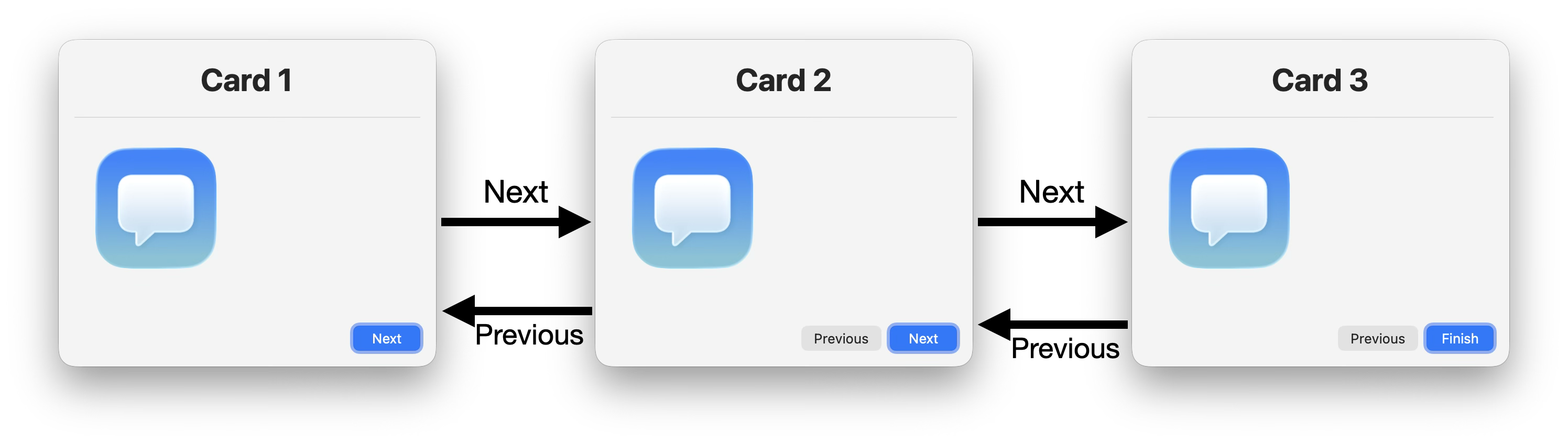
Branching Navigation
Section titled “Branching Navigation”By default, workflow cards are visited in array order. You can change that with three optional per-card properties:
| Property | Type | Purpose |
|---|---|---|
branch | object | Pick the next card based on a field value on the current card |
nextpage | integer | Static override — go to this card id after Next |
finalpage | boolean | This card terminates the workflow; Next becomes “Finish” |
When the user clicks Next, swiftDialog resolves the destination in this order:
branch(if set and a matching rule is found)nextpage(if set)- The next card in the array
- End of workflow (if no next card exists, or
finalpageis true)
The Previous button is history-aware: it returns to whichever card the user actually came from, not “current index − 1”. This works correctly across branches.
swiftDialog does not check for loops or unreachable cards. If your workflow can loop back on itself, the user will simply revisit those cards — debug the workflow logic if that’s not the intent.
Branching from a Dropdown
Section titled “Branching from a Dropdown”The branch.field value matches the field’s name (preferred) or its title/label. For a dropdown, the selected value is compared against keys in branch.map:
{ "workflow": [ { "id": 1, "title": "Choose your path", "message": "Pick an option to control which card appears next.", "selectitems": [ { "name": "userType", "title": "Account type", "values": ["Admin", "Standard", "Guest"], "default": "Standard" } ], "branch": { "field": "userType", "map": { "Admin": 10, "Standard": 20, "Guest": 30 }, "default": 99 } }, { "id": 10, "title": "Admin setup", "nextpage": 99 }, { "id": 20, "title": "Standard setup", "nextpage": 99 }, { "id": 30, "title": "Guest setup", "nextpage": 99 }, { "id": 99, "title": "Summary", "finalpage": true } ]}branch.default is optional. If set and the selected value doesn’t appear in map, the workflow advances to that fallback card.
Branching from a Checkbox
Section titled “Branching from a Checkbox”For a single boolean field, use the ifTrue / ifFalse shorthand instead of map:
{ "id": 5, "checkbox": [ { "name": "wantsExtras", "label": "Show advanced options" } ], "branch": { "field": "wantsExtras", "ifTrue": 6, "ifFalse": 99 }}You can also use map with the keys "true" and "false" if you prefer, but ifTrue/ifFalse reads more clearly.
Static nextpage Override
Section titled “Static nextpage Override”If you don’t need dynamic routing but want a card to skip ahead, set nextpage:
{ "id": 3, "title": "Optional details", "nextpage": 10 }Ending the Workflow Early
Section titled “Ending the Workflow Early”Mark any card as final to stop the workflow there:
{ "id": 99, "title": "Summary", "finalpage": true }On a final card, Button 1 displays “Finish” and dismisses the dialog when clicked, regardless of how many more workflow cards exist in the array.
Usage Examples
Section titled “Usage Examples”Example 1: Simple Three-Step Wizard
Section titled “Example 1: Simple Three-Step Wizard”{ "title": "Setup Wizard", "icon": "SF=gearshape.2", "button1text": "Continue", "workflow": [ { "title": "Welcome", "message": "Welcome to the setup wizard. Click Continue to begin." }, { "title": "Enter Information", "message": "Please provide your details:", "textfield": [ { "title": "Full Name", "required": true }, { "title": "Email Address", "required": true } ] }, { "title": "Complete", "message": "Setup is complete! Click Finish to close this wizard.", "button1text": "Finish" } ]}Run it:
dialog --jsonfile /path/to/config.jsonExample 2: Using Variable Substitution
Section titled “Example 2: Using Variable Substitution”Variable substitution allows you to reference values from previous workflow cards using {fieldname} syntax:
{ "title": "User Registration", "workflow": [ { "title": "Personal Information", "message": "Step 1: Enter your details", "textfield": [ { "title": "First Name", "required": true }, { "title": "Last Name", "required": true } ] }, { "title": "Confirmation", "message": "Hello {First Name} {Last Name}! Please confirm your information is correct.", "infobox": "**Name:** {First Name} {Last Name}" } ]}The {First Name} and {Last Name} placeholders in Card 2 will be replaced with the values entered in Card 1.
Example 3: Global Defaults with Overrides
Section titled “Example 3: Global Defaults with Overrides”{ "icon": "SF=info.circle", "width": 600, "height": 400, "workflow": [ { "title": "Introduction", "message": "This card uses the default icon and size." }, { "title": "Custom Layout", "icon": "SF=wrench.and.screwdriver", "width": 800, "height": 500, "message": "This card has a custom icon and larger size." }, { "title": "Back to Normal", "message": "This card reverts to default icon and size." } ]}Example 4: Data Collection Across Multiple Steps
Section titled “Example 4: Data Collection Across Multiple Steps”{ "title": "System Configuration", "icon": "/System/Library/PreferencePanes/Appearance.prefPane/Contents/Resources/AppIcon.icns", "workflow": [ { "title": "Network Settings", "message": "Configure network preferences:", "selectitems": [ { "title": "Network Type", "values": ["WiFi", "Ethernet", "VPN"], "default": "WiFi" } ] }, { "title": "User Preferences", "message": "Set user preferences:", "checkbox": [ { "label": "Enable notifications", "checked": true }, { "label": "Auto-update", "checked": true }, { "label": "Send analytics", "checked": false } ] }, { "title": "Summary", "message": "Review your settings:", "infobox": "**Network:** {Network Type}\\n\\n**Notifications:** {Enable notifications}\\n**Auto-update:** {Auto-update}\\n**Analytics:** {Send analytics}" } ]}Example 5: Progress Indicator with Cards
Section titled “Example 5: Progress Indicator with Cards”{ "title": "Installation Wizard", "workflow": [ { "title": "Preparing (1 of 3)", "message": "Preparing installation...", "progress": 100, "progresstext": "Checking system requirements" }, { "title": "Installing (2 of 3)", "message": "Installing software...", "progress": 100, "progresstext": "Copying files" }, { "title": "Complete (3 of 3)", "message": "Installation complete!", "icon": "SF=checkmark.circle.fill", "progress": 100, "progresstext": "Finished" } ]}Example 6: Required Fields Validation
Section titled “Example 6: Required Fields Validation”{ "title": "Registration Form", "workflow": [ { "title": "Account Details", "message": "All fields marked with * are required", "textfield": [ { "title": "Username", "required": true, "prompt": "Enter username" }, { "title": "Password", "required": true, "secure": true }, { "title": "Confirm Password", "required": true, "secure": true } ] }, { "title": "Contact Information", "message": "Please provide at least one contact method", "textfield": [ { "title": "Email", "required": true }, { "title": "Phone", "required": false } ] } ]}If users try to click Next without filling required fields, an error sheet will appear.
Advanced Features
Section titled “Advanced Features”Workflow-Specific Properties
Section titled “Workflow-Specific Properties”Any standard swiftDialog property can be used in a workflow. Common properties include:
- Layout:
width,height,position - Content:
title,message,icon,iconsize - Input:
textfield,selectitems,checkbox,radio - Display:
image,video,webcontent,listitem - Progress:
progress,progresstext - Info:
infobox,helpmessage - Styling:
messagefont,alignment,bannerimage - Navigation:
branch,nextpage,finalpage(see Branching Navigation)
Input Field Naming
Section titled “Input Field Naming”For variable substitution to work correctly, input fields should have consistent naming:
{ "textfield": [ { "title": "First Name" } // Referenced as {First Name} ], "selectitems": [ { "title": "Department", "values": ["IT", "HR", "Sales"] } // Referenced as {Department} ]}If a field has no explicit title, you can use a name property:
{ "textfield": [ { "title": "Your Name", "name": "username" } // Referenced as {username} ]}Data Persistence
Section titled “Data Persistence”User input is automatically saved when:
- Clicking Next to advance to the next card
- Clicking Previous to go back
When users navigate back to a previous card, their input is restored.
Accessing Card Data
Section titled “Accessing Card Data”When the user clicks Finish on the last card, all collected input is output to stdout in JSON format:
{ "First Name": "John", "Last Name": "Doe", "Email Address": "john.doe@example.com", "Department": "IT", "Enable notifications": true}Callbacks on Advance
Section titled “Callbacks on Advance”Use the --onadvance option to execute a shell command when advancing between workflow cards:
dialog --jsonfile config.json --onadvance "/path/to/script.sh"The script receives:
- Card index (0-based)
- Card ID (if specified)
- Current card input as JSON via stdin
The script should exit with:
- Exit code 0: Allow advancement
- Exit code non-zero: Block advancement and show error message
Example callback script:
#!/bin/bash# script.sh - Validate email format before advancing
input=$(cat)email=$(echo "$input" | jq -r '.["Email Address"]')
if [[ ! "$email" =~ ^[A-Za-z0-9._%+-]+@[A-Za-z0-9.-]+\.[A-Z|a-z]{2,}$ ]]; then    echo "Invalid email address format"    exit 1fi
exit 0
Best Practices
Section titled “Best Practices”1. Keep Workflows Focused
Section titled “1. Keep Workflows Focused”Each card should have a single, clear purpose. Don’t overwhelm users with too many fields on one card.
2. Use Descriptive Titles
Section titled “2. Use Descriptive Titles”Card titles should clearly indicate what step the user is on:
{ "title": "Step 1: Personal Information" }{ "title": "Step 2: Contact Details" }{ "title": "Step 3: Review & Confirm" }3. Provide Context
Section titled “3. Provide Context”Use the message field to explain what the user needs to do:
{ "title": "Account Setup", "message": "Create your account by choosing a username and password. Your username must be at least 6 characters."}4. Use Required Field Validation
Section titled “4. Use Required Field Validation”Mark essential fields as required to ensure data completeness:
{ "title": "Email", "required": true }5. Provide Summary Cards
Section titled “5. Provide Summary Cards”Include a final review card showing all collected information:
{ "title": "Review Your Information", "message": "Please verify everything is correct before proceeding.", "infobox": "**Name:** {Full Name}\\n**Email:** {Email}\\n**Department:** {Department}"}6. Consider Navigation Flow
Section titled “6. Consider Navigation Flow”- Don’t make the first card require extensive input - ease users in
- Place the most important data collection early
- Save confirmation/review for the final card
7. Use Consistent Styling
Section titled “7. Use Consistent Styling”Define global defaults for consistent appearance:
{ "icon": "SF=person.crop.circle", "width": 700, "height": 450, "messagefont": "size=13", "workflow": [ /* ... */ ]}Limitations and Notes
Section titled “Limitations and Notes”-
Command File Updates: When using workflow mode with a command file, some dynamic updates may not work as expected. Workflow mode is designed for input collection rather than dynamic status updates.
-
Button Customization: Button 1 and Button 2 behavior is controlled by workflow mode and cannot be fully customized while in workflow mode.
-
Exit Codes: In workflow mode, the dialog only exits when:
- User clicks Finish on the last card (exit code 0)
- User cancels (exit code varies)
- Validation fails and user chooses to cancel
-
Variable Scope: Variables from previous workflow cards are only available in subsequent cards, not in earlier workflow cards. Variable substitution is one-directional.
-
Field Naming: For proper variable substitution, use alphanumeric characters and spaces in field titles. Special characters may cause issues.
Troubleshooting
Section titled “Troubleshooting”Cards Not Appearing
Section titled “Cards Not Appearing”- Check JSON syntax with
jsonlintor similar tool - Ensure the
workflowarray is at the root level - Verify at least one card is defined
Variables Not Substituting
Section titled “Variables Not Substituting”- Ensure field names match exactly (case-sensitive)
- Check that variable references use curly braces:
{fieldname} - Verify the referenced field was on a previous card, not the current or future card
Validation Not Working
Section titled “Validation Not Working”- Confirm
"required": trueis set on fields - Check that field has a
titleornameproperty - Review debug logs with
--debugflag
Previous Button Not Showing
Section titled “Previous Button Not Showing”- Verify you’re not on the first workflow card (Previous is hidden on the first card)
- Check that workflow mode is actually enabled (workflow array exists)
Branch Goes to the Wrong Card
Section titled “Branch Goes to the Wrong Card”- Confirm
branch.fieldmatches the field’sname(or itstitle/labelif no name is set) - For dropdowns, map keys are compared against the user’s selected value verbatim — case and whitespace matter
- For checkboxes, prefer
ifTrue/ifFalseover"true"/"false"map keys - Check the swiftDialog log — invalid
nextpage/branchtargets are reported at load time
Complete Example: Employee Onboarding Wizard
Section titled “Complete Example: Employee Onboarding Wizard”{ "title": "Employee Onboarding", "icon": "/System/Library/CoreServices/CoreTypes.bundle/Contents/Resources/UserIcon.icns", "width": 750, "height": 500, "button1text": "Continue", "workflow": [ { "title": "Welcome to the Company!", "message": "## Welcome Aboard!\\n\\nThis wizard will guide you through the onboarding process.\\n\\nClick Continue to get started.", "icon": "SF=hands.clap.fill", "iconsize": 120 }, { "title": "Personal Information", "message": "Please provide your personal details (all fields required):", "textfield": [ { "title": "First Name", "required": true }, { "title": "Last Name", "required": true }, { "title": "Employee ID", "required": true }, { "title": "Work Email", "required": true, "prompt": "name@company.com" } ] }, { "title": "Department Assignment", "message": "Select your department and role:", "selectitems": [ { "title": "Department", "values": ["Engineering", "Marketing", "Sales", "HR", "Finance"], "default": "Engineering" }, { "title": "Role", "values": ["Manager", "Senior", "Mid-level", "Junior"], "default": "Mid-level" } ] }, { "title": "System Preferences", "message": "Configure your system preferences:", "checkbox": [ { "label": "Enable email notifications", "checked": true }, { "label": "Join company Slack", "checked": true }, { "label": "Subscribe to company newsletter", "checked": true }, { "label": "Opt-in to mentorship program", "checked": false } ] }, { "title": "Review & Confirm", "message": "Please review your information before completing the onboarding process:", "icon": "SF=checkmark.circle", "infobox": "**Name:** {First Name} {Last Name}\\n**Employee ID:** {Employee ID}\\n**Email:** {Work Email}\\n\\n**Department:** {Department}\\n**Role:** {Role}\\n\\n**Email Notifications:** {Enable email notifications}\\n**Slack:** {Join company Slack}\\n**Newsletter:** {Subscribe to company newsletter}\\n**Mentorship:** {Opt-in to mentorship program}", "button1text": "Complete Onboarding" } ]}Save this as onboarding.json and run:
dialog --jsonfile onboarding.jsonIntegration Example: Shell Script
Section titled “Integration Example: Shell Script”Here’s a complete shell script example that uses workflow mode and processes the output:
#!/bin/bash
# onboarding.sh - Employee onboarding with swiftDialog workflow
DIALOG="/usr/local/bin/dialog"CONFIG="/tmp/onboarding_config.json"
# Create the JSON configurationcat > "$CONFIG" << 'EOF'{  "title": "Employee Onboarding",  "icon": "SF=person.crop.circle.badge.checkmark",  "width": 700,  "height": 450,  "workflow": [    {      "title": "Welcome",      "message": "Welcome to Company XYZ! This wizard will set up your account."    },    {      "title": "Enter Details",      "message": "Please provide your information:",      "textfield": [        { "title": "Full Name", "required": true },        { "title": "Email", "required": true }      ]    },    {      "title": "Complete",      "message": "Onboarding complete for {Full Name}!",      "infobox": "We'll send a confirmation to {Email}"    }  ]}EOF
# Run dialog and capture outputif output=$("$DIALOG" --jsonfile "$CONFIG" 2>&1); then    echo "Onboarding completed successfully!"    echo "Collected data:"    echo "$output" | jq .
    # Extract specific fields    full_name=$(echo "$output" | jq -r '.["Full Name"]')    email=$(echo "$output" | jq -r '.Email')
    echo "Processing onboarding for $full_name ($email)..."
    # Add your custom logic here    # - Create user account    # - Send welcome email    # - Configure systems
else    echo "Onboarding was cancelled or failed"    exit 1fi
# Cleanuprm -f "$CONFIG"
Summary
Section titled “Summary”The Workflow feature in swiftDialog provides a powerful way to create multi-step, wizard-like interfaces using simple JSON configuration. Key benefits include:
- Simplified complex workflows - Break down complicated processes into manageable steps
- Built-in navigation - Automatic Next/Previous/Finish buttons
- Data collection - Easily gather and validate user input across multiple screens
- Flexible configuration - Use global defaults and per-workflow card overrides
- Variable substitution - Reference previous workflow card values in later workflow cards
- No coding required - Define everything in JSON
For more information on individual swiftDialog options and parameters, refer to the main swiftDialog documentation or use dialog --help.