Skip to content

Notifications

swiftDialog allows you to send system notifications using the --notification argument. This indicates that swiftDialog should send a system notification instead of showing a dialog window.

Notifications use the same --title, --message and --icon arguments to present text and media. Any other arguments not listed on this page are ignored.

There is an additional argument --subtitle which adds a subtitle to the notification.

From v3.1, swiftDialog routes notifications through dedicated helper applications embedded inside Dialog.app. Use the --style argument to select the notification type:

--style valueBehaviourHelper used
bannerNotification appears briefly then dismisses automaticallyDialog Banner
alertNotification persists until the user dismisses itDialog Alert

The default when --style is omitted depends on the system notification settings configured for the app.

Calling --notification without --style still works for backwards compatibility but routes through the main Dialog.app bundle. This path is deprecated and will emit a warning to stderr: In a future release, sending a notification without --style will default to --style banner.

To ensure the style types are correctly set, deploy a mobileconfig that pre-approves notifications for the relevant helper apps (au.csiro.dialog.banner and au.csiro.dialog.alert) with the desired notification style.

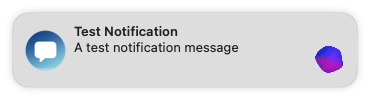
Sending a basic banner notification:

Terminal window
dialog --notification --style banner --title "Test Notification" --message "A test notification message"

Sending a persistent alert notification:

Terminal window
dialog --notification --style alert --title "Test Notification" --message "A test notification message"

image

If the message is longer than what the notification can show, the message will be truncated and show elipses ... to indicate as such. There should also appear a chevron in the top right of the notification when the user hovers over the notification that lets the user expand the contents

Screenshot 2022-11-13 at 5 26 10 pm

Screenshot 2022-11-13 at 5 26 15 pm

Adding a subtitle:

Terminal window
dialog --notification --style banner --title "Test Notification" --message "A test notification message" --subtitle "Test Subtitle"

image

Including title and subtitle a notification can have up to 5 lines of text. A \n character within the message body will create a newline in the notification.

An image can be added with --icon and accepts all existing image formats and sources.

image

When displaying an image, the content of the notification can be expanded by the user

image

Note: You cannot replace the default icon that is displayed with the notification. Images added using --icon will appear within the notification

You can set an action to be performed when the user clicks on the notification. This can be a URL or a shell command.

NOTE: Notifications are user driven, and consequently the actions taken by the notification are in the user context.

The basic use for this feature is:

Terminal window
dialog --notification --style banner --title "<text>" --message "<text>" --button1action "open -a Safari.app"
dialog --notification --style banner --title "<text>" --message "<text>" --button1action "https://swiftdialog.app/"

You can specify an additional action and define the button labels:

Terminal window
dialog --notification --style banner --title "<text>" --message "<text>" \
--button1text "Do Something" --button1action "/do/something" \
--button2text "Do Something Else" --button2action "/do/something/else/"

--button1action is the default action when either the notification body or button1 is clicked. --button2action only triggers when button2 is clicked.

You can assign a persistent identifier to a notification using --identifier. This allows you to remove a specific notification later:

Terminal window
# Send a notification with an identifier
dialog --notification --style banner --title "Update Available" --message "Version 2.0 is ready" --identifier "update-available"
# Remove it later
dialog --notification --style banner --remove --identifier "update-available"

Calling --remove without --identifier removes all pending notifications from that helper.

Use --enablenotificationsounds to play the default notification sound when the notification is delivered:

Terminal window
dialog --notification --style alert --title "Alert" --message "Action required" --enablenotificationsounds

Approving and Setting Notification type via MDM

Section titled “Approving and Setting Notification type via MDM”

When you first use notifications you may not receive any feedback or be prompted to allow notifications.

To manually allow notifications you will need to go to System Settings -> Notifications and enable notifications for the relevant application(s). You can also select between None, Banner or Alert style.

When deploying swiftDialog via MDM it is preferred to deploy a mobileconfig that will pre-approve notifications and set the notification type.

VersionBundle identifierNotes
v2.2.1 and earlierau.bartreardon.dialogLegacy
v2.3 – v3.0au.csiro.dialogMain app bundle
v3.1+ (banner style)au.csiro.dialog.bannerDialog Banner helper
v3.1+ (alert style)au.csiro.dialog.alertDialog Alert helper

To confirm the exact bundle identifiers on an installed build, run:

Terminal window
defaults read "/Library/Application Support/Dialog/Dialog.app/Contents/Helpers/Dialog Banner.app/Contents/Info.plist" CFBundleIdentifier
defaults read "/Library/Application Support/Dialog/Dialog.app/Contents/Helpers/Dialog Alert.app/Contents/Info.plist" CFBundleIdentifier

If you have a mixed installation you can include multiple bundle entries in the same profile. An example payload for banner style notifications might look like this:

<key>PayloadContent</key>
<array>
<dict>
<key>PayloadDisplayName</key>
<string>Notifications Payload</string>
<key>PayloadIdentifier</key>
<string>449B1259-E631-4051-ADCE-9532B813ADDC</string>
<key>PayloadOrganization</key>
<string>Org Name</string>
<key>PayloadType</key>
<string>com.apple.notificationsettings</string>
<key>PayloadUUID</key>
<string>12EA8FDA-B204-4AD0-802C-C980615F0BA5</string>
<key>PayloadVersion</key>
<integer>1</integer>
<key>NotificationSettings</key>
<array>
<dict>
<key>AlertType</key>
<integer>1</integer>
<key>BadgesEnabled</key>
<true/>
<key>BundleIdentifier</key>
<string>au.bartreardon.dialog</string>
<key>CriticalAlertEnabled</key>
<false/>
<key>NotificationsEnabled</key>
<true/>
<key>ShowInLockScreen</key>
<true/>
<key>ShowInNotificationCenter</key>
<true/>
<key>SoundsEnabled</key>
<true/>
</dict>
<dict>
<key>AlertType</key>
<integer>1</integer>
<key>BadgesEnabled</key>
<true/>
<key>BundleIdentifier</key>
<string>au.csiro.dialog</string>
<key>CriticalAlertEnabled</key>
<false/>
<key>NotificationsEnabled</key>
<true/>
<key>ShowInLockScreen</key>
<true/>
<key>ShowInNotificationCenter</key>
<true/>
<key>SoundsEnabled</key>
<true/>
</dict>
<dict>
<key>AlertType</key>
<integer>1</integer>
<key>BadgesEnabled</key>
<true/>
<key>BundleIdentifier</key>
<string>au.csiro.dialog.banner</string>
<key>CriticalAlertEnabled</key>
<false/>
<key>NotificationsEnabled</key>
<true/>
<key>ShowInLockScreen</key>
<true/>
<key>ShowInNotificationCenter</key>
<true/>
<key>SoundsEnabled</key>
<true/>
</dict>
<dict>
<key>AlertType</key>
<integer>2</integer>
<key>BadgesEnabled</key>
<true/>
<key>BundleIdentifier</key>
<string>au.csiro.dialog.alert</string>
<key>CriticalAlertEnabled</key>
<false/>
<key>NotificationsEnabled</key>
<true/>
<key>ShowInLockScreen</key>
<true/>
<key>ShowInNotificationCenter</key>
<true/>
<key>SoundsEnabled</key>
<true/>
</dict>
</array>
</dict>
</array>

Note that the AlertType key controls the notification style independently of --style:

  • 1 = Banner (dismisses automatically)
  • 2 = Alert (persists until dismissed)

When deploying with --style alert, set AlertType to 2 in the au.csiro.dialog.alert entry, and vice versa for banners.

If you receive the following:

Notifications are not available: Couldn't communicate with a helper application

verify that the relevant Dialog application has notifications enabled in System Settings, either by applying one of the above mobileconfig files via MDM or manually in System Settings.

Notifications will use the default swiftDialog icon. If you would like to re-brand to use a different icon, e.g. a corporate identity, then you can use the following steps to update the app bundle icon to something more appropriate for your use.

  • Latest swiftDialog pkg
  • An appropriate replacement image at least 512x512 (1024x1024 preferred)
  • You can generate an image from your MDM vendors self service application using the sips command. For example:

    Terminal window
    sudo /bin/mkdir -p /Library/Application\ Support/Dialog
    sips -s format png /Applications/Kandji\ Self\ Service.app/Contents/Resources/AppIcon.icns --out /Library/Application\ Support/Dialog/Dialog.png
    Terminal window
    temp_file=$(/usr/bin/mktemp)
    /usr/bin/xxd -p -s 260 "$(defaults read /Library/Preferences/com.jamfsoftware.jamf self_service_app_path)"/Icon$'\r'/..namedfork/rsrc | /usr/bin/xxd -r -p > "$temp_file"
    sudo /bin/mkdir -p /Library/Application\ Support/Dialog
    sudo /usr/bin/sips -s format png "$temp_file" --out /Library/Application\ Support/Dialog/Dialog.png
  1. Copy your replacement icon image to /Library/Application Support/Dialog/Dialog.png (case sensitive)
  2. Install swiftDialog from the .pkg installer.

With the replacement Dialog.png in place the installer will replace the built in icon with the specified image. Notifications will then use the custom image as the notification icon.

Screenshot 2022-11-14 at 9 55 20 am